
Part 8 of 11 — Vibe Coding for Non-Developers
A few people have been asking me about “Skills” in Claude. Not in a casual way — more like they’d heard the word somewhere, felt slightly intimidated by it, and wanted me to decode it for them. Which is fair, because I had no idea what they were either. And the concept isn’t even Claude-specific — every major AI tool has a version of this. They just call it different things.
So I went and actually figured it out. And then I started using them myself. And honestly? It’s one of those things that sounds way more technical than it is.
What I Was Trying to Understand
The goal going into this was simple: what even are these saved instructions people keep mentioning, and do they actually change anything useful?
I’d seen the word “Skills” pop up in Claude’s interface, “Custom Instructions” in ChatGPT, and it always felt like it belonged to a more advanced tier of user. The kind of person who has opinions about system prompts and reads changelogs for fun.
Turns out it doesn’t require any of that.
What AI Custom Instructions and Skills Actually Are
Here’s the non-intimidating version: a saved instruction set is basically a document that tells your AI how to behave in a specific situation.
Instead of re-explaining yourself every single time (“write in a casual tone, don’t use bullet points, remember I’m not a developer…”), you write it down once and the tool refers to it automatically when it’s relevant.
Think of it like a cheat sheet you leave on the desk for a new assistant. You don’t have to repeat yourself every morning. They just pick it up and get on with it.
The terminology varies depending on what you use:
- Claude calls them Skills
- ChatGPT has Custom Instructions and GPTs
- Gemini has Gems
- Cursor calls them Rules
Same idea. Different name. You write down what you want the AI to know or do, and it uses that context without you having to spell it out again every session.
The Two Things That Actually Surprised Me
I went in expecting this to be mildly useful. I came out more impressed than I expected, for two reasons.
First: you can write your own. I assumed these were something the tool vendor built and handed to you, like a fixed menu. But no — you can write one yourself, from scratch, in plain language. No code. No special syntax. Just a document that explains how you want the AI to work. I wrote one for the tone and structure of these blog posts, and now Claude just… does it. Without me having to explain the whole thing again at the start of every session.
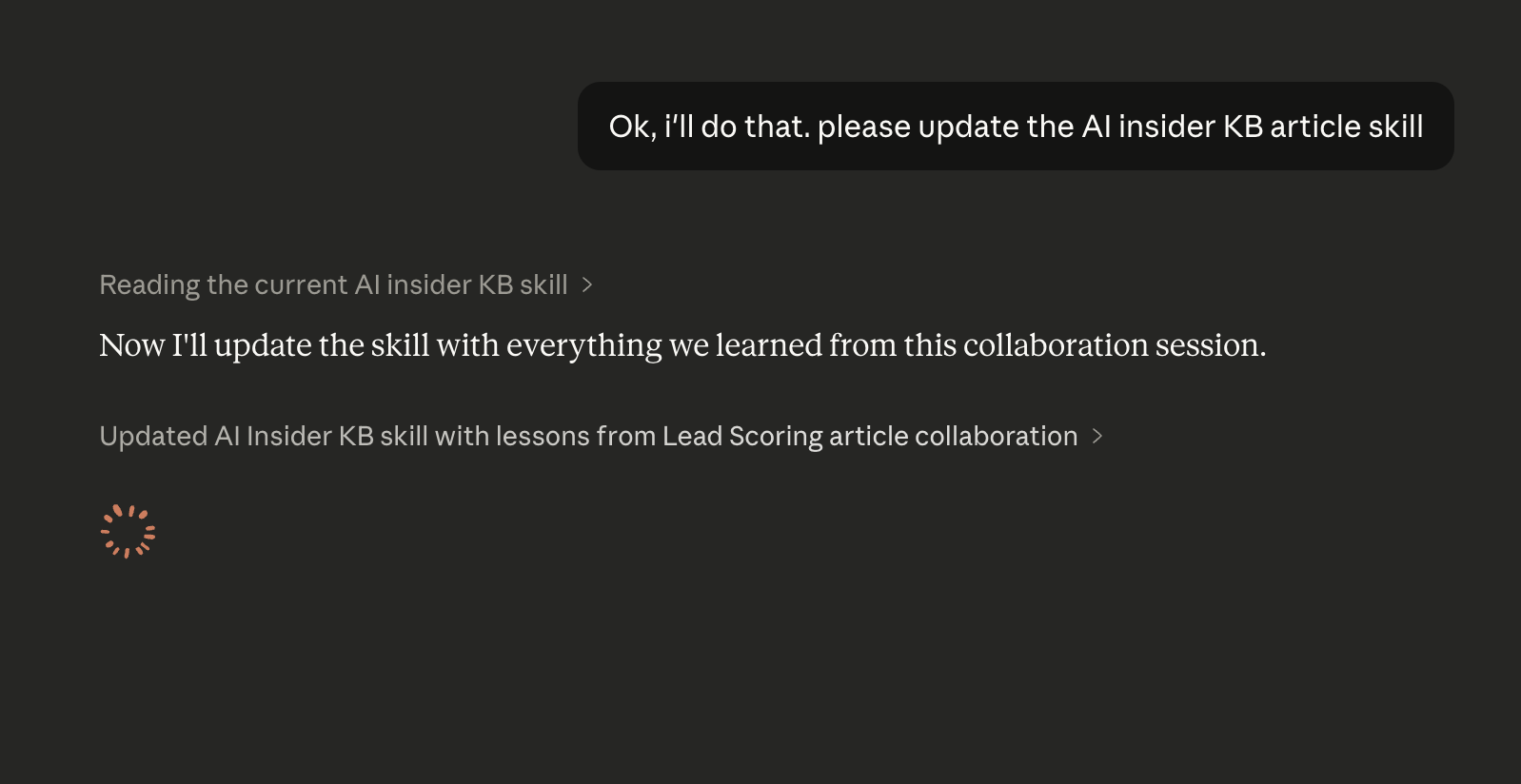
And when a session surfaces something new worth remembering, it asks:
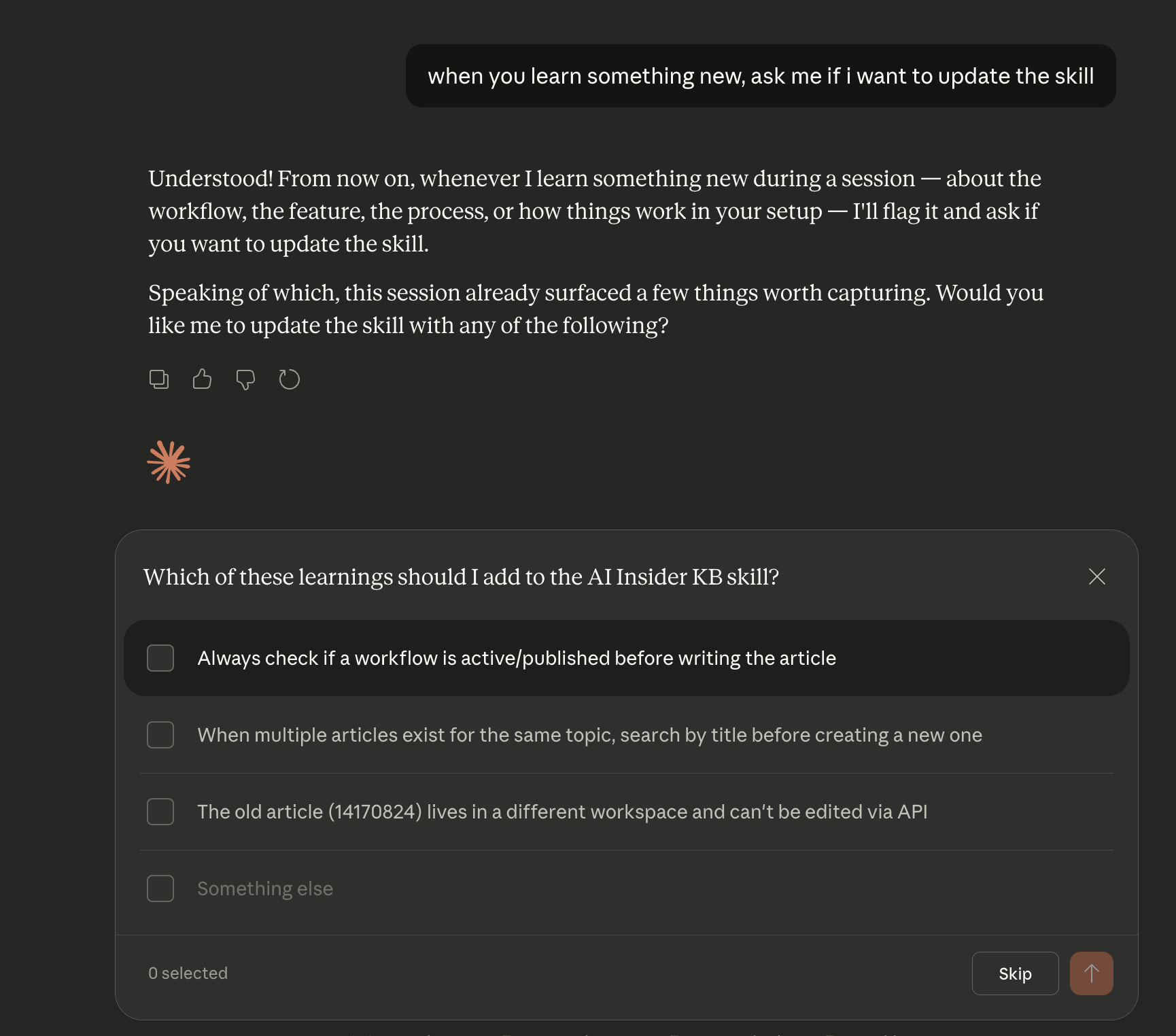
Second: it actually changes the output in a noticeable way. This sounds obvious in hindsight, but I didn’t quite believe it until I saw it. The difference between a session with the right context loaded and one without it isn’t subtle — it’s like the difference between briefing someone properly and just hoping they figure it out. The output is sharper, more consistent, and weirdly more mine.
The Part Nobody Warned Me About
Here’s the thing that frustrated me most, and it has nothing to do with the technology: the way people talk about this online made it sound harder than it is.
I read a bunch of posts and threads before diving in, and a lot of them were written by people who clearly love the technical side of things. Which is great for them. But if you’re not already comfortable with terms like “system prompt” or “context window,” the explanations go sideways fast.
The actual experience of creating and using one is much simpler than the discourse around it. You write down what you want the AI to know or do. You save it. The tool uses it. That’s the loop.
If I’d just started doing it instead of reading about it, I would have gotten there in ten minutes.
What I’d Tell You to Try
If you’ve been vaguely aware of this but haven’t touched it yet, here’s what I’d actually recommend:
Start with something you repeat. Is there a task you do regularly where you always have to remind your AI of the same things? That’s your first one. Write down those reminders as a document. Done.
Write it like you’re briefing a smart person, not programming a robot. Plain sentences work fine. You don’t need special formatting or technical language. I wrote mine the same way I’d explain something to a new colleague.
Don’t wait until you fully understand it. The best way to understand what this does is to make a small one and watch it work. Everything clicked for me faster once I stopped reading and started doing.
Ignore anyone who makes it sound like you need to be technical to use this. You don’t. If you can write a decent email, you can write one of these.
Check what already exists before building your own. Claude has a library of pre-made Skills, ChatGPT has a GPT store, and people in the community share their setups. Before spending time building something for a common task, it’s worth checking if someone already made a good one. Think of it like checking the menu before you ask if they can make something custom.
There’s a lot of power sitting there, in whatever AI tool you already use, behind a door nobody told you was unlocked.
Part 9: I’ve Written These for Years. Never for My Own. → · Start from the beginning →